


Translate manga while you read in your browser
Turn on Auto for a site, read as usual and pages translate as they scroll in. How to pause it, and which readers work.
To translate manga while you read, turn on Auto for the reader site in the RuneManga browser extension. It translates the pages on your screen and the ones about to scroll into view, in place, so you keep reading in the same tab. You never download or upload anything.
The extension works today in Chrome, Edge, Opera and Brave, from the Chrome Web Store and Edge Add-ons. A Firefox version is submitted to Firefox Add-ons and is in review.
Turn it on for a site
- Choose the language you read: click the RuneManga icon in the toolbar and pick it under Translate into. The original language is detected by itself.
- Open a chapter on the reader site and rest the pointer on a page. The RuneManga logo appears in its corner; rest on the logo and its bar opens.
- Turn on Auto in the bar. The first time, the browser asks once to let the extension work on the site and on the address that serves its images.
- Scroll. The pages near your position are translated and swapped in place. Auto stays on for that site the next time you open it.
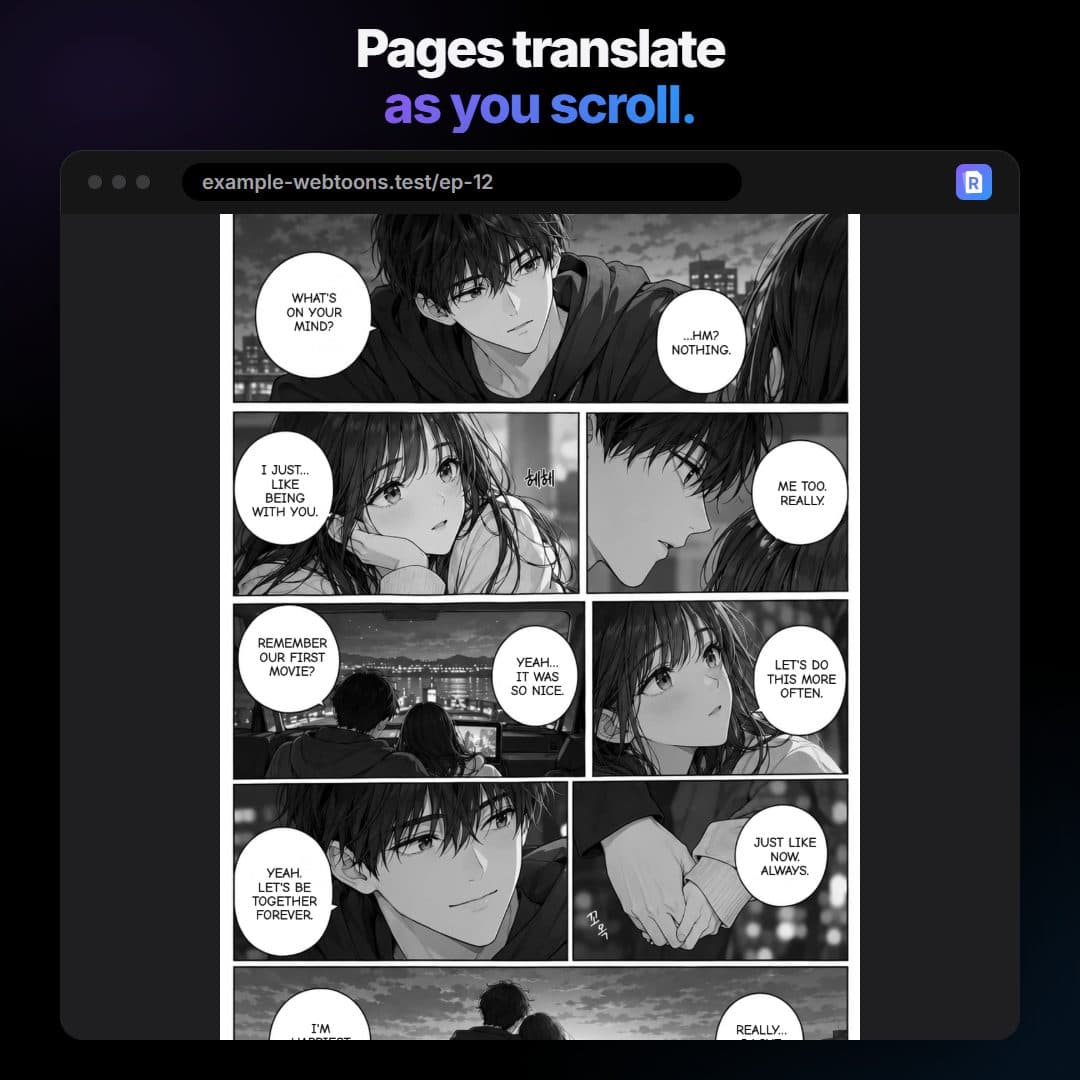
What happens as you scroll
RuneManga does not send a whole chapter at once. It translates the pages from about half a screen behind you to about two screens ahead, nearest to you first, two at a time. As you scroll, that zone moves with you. This keeps the first pages fast and stops one reader from flooding the shared servers. A page that is still waiting for its translation can appear blurred for a moment.
If you scroll very fast, you can get ahead of the translation. Slow down for a second and the pages catch up.
Pause, resume and compare
- The popup's This page row shows how many pages are done, with Pause and Resume.
- Pause stops new pages from being translated, for example when you want to save load or just read what is there. Resume continues from where you are.
- Original in a page's bar, or Show originals in the popup, switches the translated pages back and forth, so you can check a line against the source. Press and hold a translated page to see the original while you hold.
Per-site on and off
Auto is per site. Turning it on for one reader does not touch any other tab or site, and the extension remembers it, so the next time you open that site its pages translate by themselves. Turn Auto off in a page's bar or in the popup and the pages stay as the site made them. To take back the access you gave, use the browser's own site access settings for the extension.
Which readers work
- Readers that show pages as ordinary images: these work, including readers that load pages lazily as you scroll.
- Readers that draw pages on a canvas: these work when the browser allows reading the canvas.
- Readers that protect their canvas: these are blocked by the browser, and the extension says so. RuneManga does not work around that protection.
- Images that a site passes through another address can fail. The extension reports that it cannot follow them yet.
Common problems
- Nothing happens: reload the page and check that Auto is on in a page's bar; accept the permission if the browser asks.
- A page says it cannot be read: open the popup and press Allow if it offers more image sites, then click the page's logo to try again.
- Some text is still in the original language: text outside bubbles and sound effects are not translated yet.
- The wrong language: the original language is detected from the page, and a page with only a word or two can be guessed wrong. Click its logo to try it again.
- It stopped after a while: translation may be paused. Press Resume in the popup.
Extension or WebApp
Use the extension to read in the browser. Use the WebApp when you have the pages as files, want a whole chapter as a ZIP, or the reader does not work with the extension.